
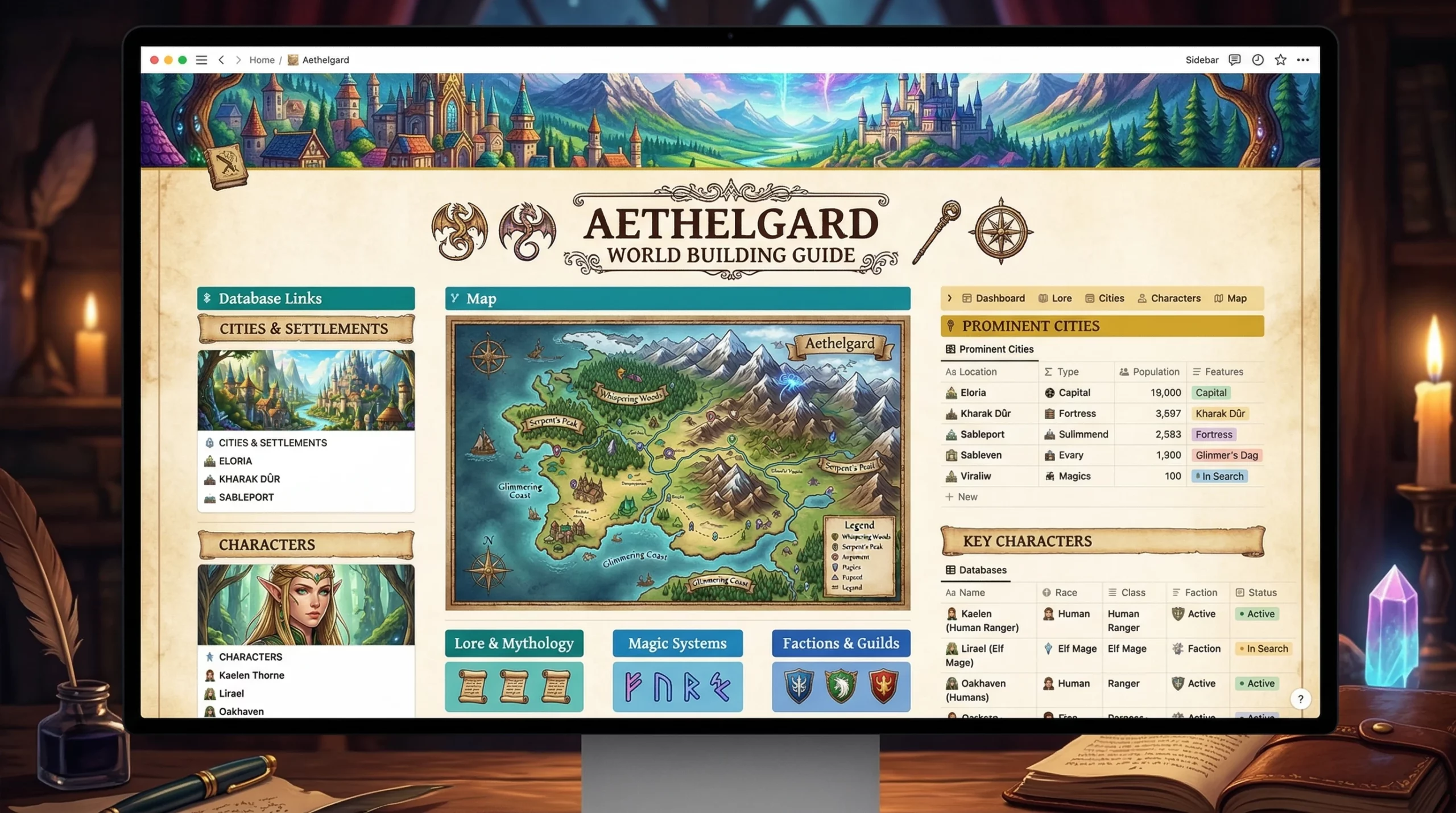
Bringing a fantasy world to life isn’t just about wild ideas and epic battles. It’s also about wrestling all those magical details into something that actually makes sense. If you’ve ever juggled pages of backstory, maps full of kingdoms, and random character notes scattered across apps and notebooks, you know how fast things can spiral out of control.
Using Notion to design your own fantasy world framework makes things easier to organize and way more fun to revisit. Notion brings all those maps, societies, legends, and magical systems under one digital roof, letting you build, customize, and explore your setting as it grows. I use Notion for all my big creative projects, and it completely changed how I keep track of everything. Whether I’m outlining a novel or prepping for a D&D campaign, it’s all there in one place.
I’m sharing a step-by-step guide for building a fantasy world framework in Notion. Whether you’re just starting to check out your world or you’ve been scribbling ideas for years, these steps should help you build a setup you’ll actually enjoy using. And, you’ll have inspiration every time you return to your notes.
Step 1: Sketch Out the Foundation
Before you get into city maps or secret gods, start by listing the big-picture elements of your world. Getting these buckets set up in Notion up front gives you a place to drop new ideas as you go. Here are some sections I always start with:
- World Overview. A snapshot of your world’s origin, main themes, and elevator pitch.
- Maps & Geography. Continent shapes, biomes, sketches of landscapes, climate zones.
- Cultures & Societies. Factions, nations, ethnic groups, tribes, religions, or magical orders.
- Characters. Main players, sidekicks, legends, and the mysterious figures hiding in the shadows.
- Lore & History. Myths, key events, magical disasters, past empires.
- Magic & Technology. How magic or advanced tech works, rules, limitations, and who has access.
On your Notion world page, add each topic as a heading or as pages in a sidebar. Keeping things broad early on means you won’t get bogged down adding details before you’re ready. As your story or campaign progresses, fill in more under each umbrella as your world takes shape.
Step 2: Make It Clickable and Expandable
Notion’s biggest strength is how you can organize content any way you want. I usually turn each section above into a separate page or database. For example, for Countries or Characters, a table database is really handy and easy to update.
Ways to Format Your Framework:
- Headings & Toggles. Great for brain dumps or early outlines. Toggles are perfect for stashing big blocks of info without making your page overwhelming.
- Database Tables. Add columns for names, short descriptions, locations, related pages, and even images. You can filter and sort to keep things tidy.
- Linked Pages. Any important item (like a city or character) gets its own page, which you link from your main sections for easy navigation.
Here’s how I lay out a Character database: Name | Role | Culture | Location | Connections (linked to other pages) | One-liner backstory.
This setup makes it simple to crosslink. For instance, a city can be the site of an important event in your lore, or a magic item can tie together two rival factions. Notion opens up a lot of possibilities to link events, people, and places as your creativity flows.
Step 3: Add Some Visual Flair
Staring at blank white pages isn’t very inspiring, so I like to give things a boost with cover images and icons. Notion lets you upload header banners, draw from their emoji library, or use external image links. Fantasy worldbuilding is visual by nature. Pull in those Pinterest finds, AI-generated landscapes, or sketches you made during lunch.
Each world area or main city page gets its own banner and icon. It feels like walking into a map room every time you open Notion. Notion also supports galleries and embeds, letting you include concept art, maps, or references right next to your notes. If you want a next-level cool dashboard, having these visuals will immerse you every time you check in.
Step 4: Build In Your Secrets, Quests, and Twists
What’s a fantasy world without buried secrets, lost relics, or ancient prophecies? I always add a database, toggle section, or hidden page for mysteries and unresolved plot threads. Here’s what I usually track:
- Secret Societies. Who are they? What do they want? Who knows about them?
- Legendary Items. Artifacts lost to time, what magic they hold, where they might be hidden.
- Prophecies or Foretellings. Wording, symbols, and the characters or locations they tie to.
- Ongoing Mysteries. Unanswered questions about cultures, magic, or historical events.
Using Notion toggles is nice here. You can hide spoiler details until you need them, or keep certain facts available for only you if you’re prepping a story for other readers or players. You can also keep track of which secrets still need answers or which prophecies are tied to a future story beat.
Step 5: Link It All Together
Now for the fun part: connecting the dots! Notion’s linking feature means every piece of your setting can connect to anything else, like so:
- A city page connects to its founding myths, events, and main characters.
- Characters reference the countries or societies they’re from, plus important items or other people.
- World events or prophecies tag every location, character, and relic they impact.
This is where your whole framework starts to feel like a living world instead of a bunch of random notes. As you add chapters, scenes, or session notes, just drop a new entry wherever it fits and link away. These connections make it easy to check out storylines and keep every thread in sight.
Quick Tips for First-Time Notion Worldbuilders
- Use Placeholders a Lot. Even a blank page for a country or religion keeps you from forgetting ideas later. Add a title, and fill it in when creativity strikes.
- Toggles for Spoilers. Great for hiding secrets from players/readers (or from yourself if you need to figure things out later).
- Experiment with Templates. Notion’s own template gallery has pages for worldbuilding, lore, and RPG campaigns. These are super useful for getting started.
- Add Bookmarks and Embeds. Pull in reference wikis, art, or Google Docs with one click and get all your favorite sources in one place.
It’s easy to overthink your setup. The beauty of Notion is that you can change the structure as your world grows, so don’t feel pinned down. What matters most is keeping everything in one reliable, searchable spot so nothing gets lost as ideas develop.
Common Questions & Troubleshooting for Notion Fantasy Frameworks
What if I’m overwhelmed by too many sections?
Don’t stress about filling every slot! Start small, maybe with only three or four core areas. Add new sections only when you get inspired or have a reason to. Let your world grow at its own pace.
Can I include maps or handdrawn stuff?
Absolutely. Just upload JPG or PNG scans of your maps, or drop in digital files. You can always replace or edit these as your world switches up. Even rough sketches add depth and keep your imagination buzzing.
What if I want to share my world with beta readers or players?
Notion makes sharing pages super easy. You can control which pages others see, so you keep spoilers hidden. Just remember, anything you link that isn’t public stays private! It’s a handy way to reveal just the right details to your group or readers.
How do I avoid infodumping everywhere?
Toggles and linked pages are your friends. Keep overviews short, tuck deep lore into nested toggles or separate pages, and only expand if you need to. That way, your notes are easy to browse without overwhelming details.
Ready to Build Your Fantasy World?
Organizing all your magic, lore, and adventures in Notion won’t just save your sanity; it’ll make coming back to your project way more fun. This approach keeps my imagination burning and my ideas easy to find whenever I’m in the mood to write or run a game. Plus, Notion’s search and linking tools mean you always know where to look for the details that make your setting shine.
Your Next Steps:
- Pick 3 main sections to start your Notion world dashboard.
- Add a few placeholders or notes for cities, cultures, or magic systems—even if they’re just names or rough ideas.
- Upload or link a cover image that captures your world’s vibe. It could be art you made, a photo, or something pulled from elsewhere online.
Building a fantasy world is an adventure, and with Notion, you’ve got a toolkit that grows with your ideas. I’d love to see how you use these steps or tweak them for your story. Drop your ideas or screenshots in the comments and let’s check out each other’s worlds!
Our website contains affiliate links. This means if you click and make a purchase, we may receive a small commission. Don’t worry, there is no extra cost to you. It’s a simple way you can support our mission to bring you quality content.
**Disclaimer**: The views expressed in this article are based on personal experience and creativity. Always consider multiple perspectives when designing fantasy worlds.
About the Author
Seraph is an aspiring worldbuilder and creative enthusiast who explores the realms of imagination through collaboration with AI. By sharing ideas and visions, they bring vibrant stories and unique fantasy realms to life. Passionate about crafting immersive worlds, Seraph invites readers to join the adventure of discovery and creativity.